
Sound library
Three windows for sounds
The virtual instrument sounds are not shipped inside the application. You download them on demand from an online library, which keeps the application light.
The Midi menu opens three windows:
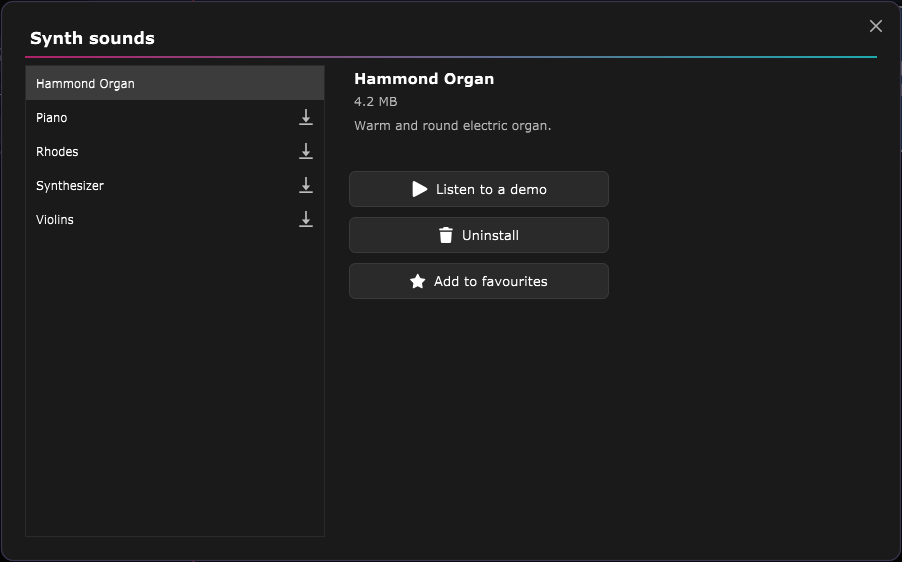
- Synth sounds: the sounds (SoundFont banks) that play synthesiser and piano blocks.
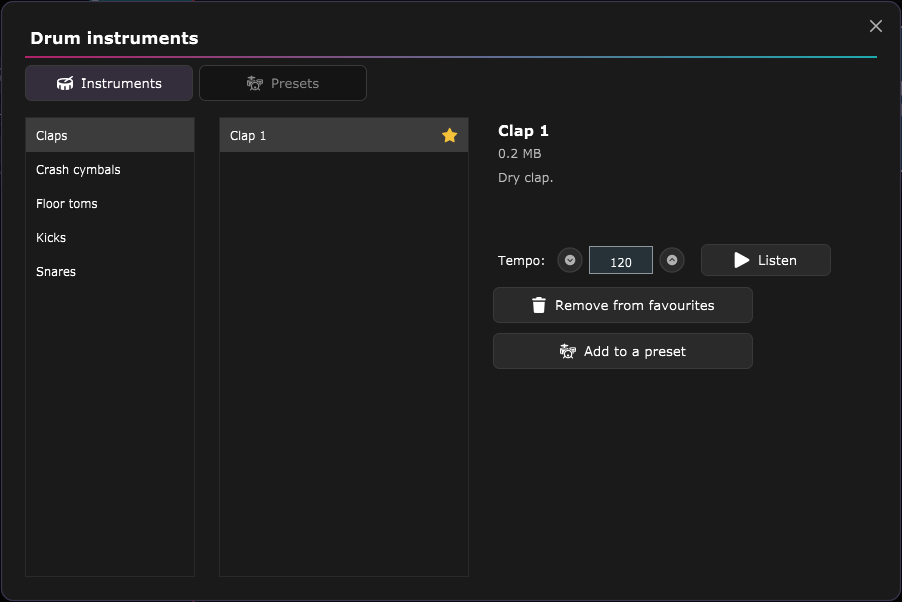
- Drum instruments: the instruments one by one (kicks, snares, toms, cymbals…), sorted by family.
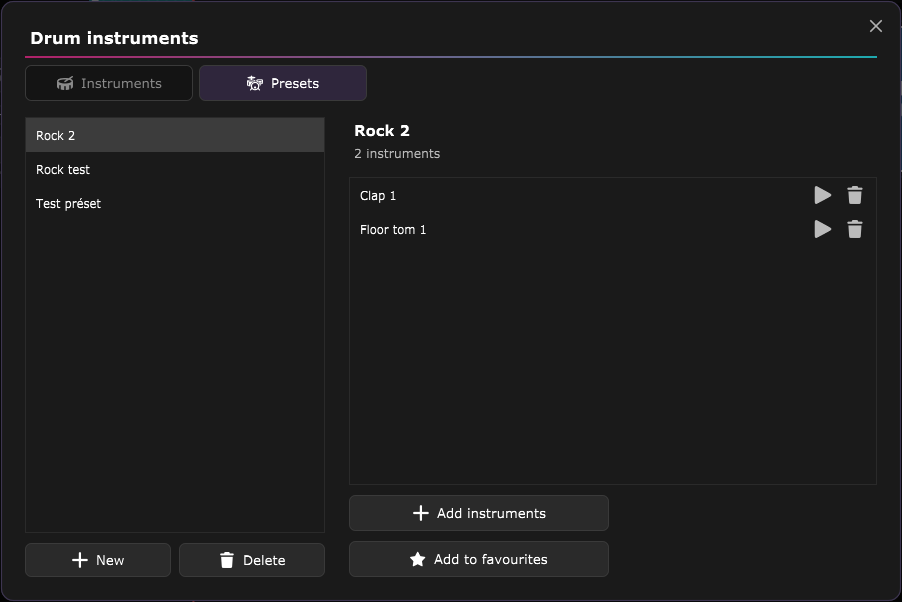
- Drum presets: your own lists of instruments, to start a drum block quickly.
The two drum windows are really two tabs of a single window, Instruments and Presets; the menu simply opens the tab you asked for.
Install and uninstall
In a list, a download icon marks a sound that is not installed on this computer yet. Nothing is downloaded while you are just browsing the library.
- Synth sounds: select a row, and the right panel shows the name, the size in megabytes and the description, with a purple Install button. Once the sound is installed, the panel also offers Uninstall, which is immediate and has no confirmation.
- Drum instruments: there is no "Install" button. The instrument is downloaded as soon as you act on it (listen to it, add it to your favourites, add it to a preset or to a block); a progress bar and a waiting indicator replace the buttons, and the action then completes by itself.
Only one download runs at a time. If a block in a session uses a sound that is missing from the computer, it is downloaded when the session is opened.
Listen before choosing
The detail panel lets you listen before deciding.
- For a synthesiser: Listen to a demo plays a held note.
- For a drum instrument: first set a tempo (a whole number, with − and + buttons), then click Listen. The instrument loops at that tempo until you click the same button, now labelled Stop.
- In a preset: each sound in the list has a play button, which plays the instrument once.
Favourites
The Add to favourites button (which becomes Remove from favourites once clicked) marks a sound, an instrument or a preset with a star. Favourites move to the top of their list, and the rest is sorted by name.
Your favourites and presets are tied to your account: you find them again when you sign in on another computer. If you change them on two machines, the most recent change wins.
Drum presets
A preset is a list of drum instruments that you name. It is a starting point: when a drum block is created, the preset's instruments become the block's rows. After that the block keeps no link to the preset: changing or deleting the preset never alters a block that already exists.
In the Presets tab:
- New asks for a name and creates the preset; names are unique. Delete asks for confirmation.
- On the right, the instruments of the selected preset. Each has a play button and a delete button that removes it from the preset.
- Add instruments switches to the Instruments tab, where each click on Add to this preset adds one instrument. Those already in the preset are ticked. Back to the preset returns to the list.
From the Instruments tab, Add to a preset goes the other way: you pick the preset that should receive the instrument.
In a drum block's editor, the Save this drum preset button turns the block's instruments into a preset (it only appears if those instruments don't already form a preset).
Choosing a sound for a block
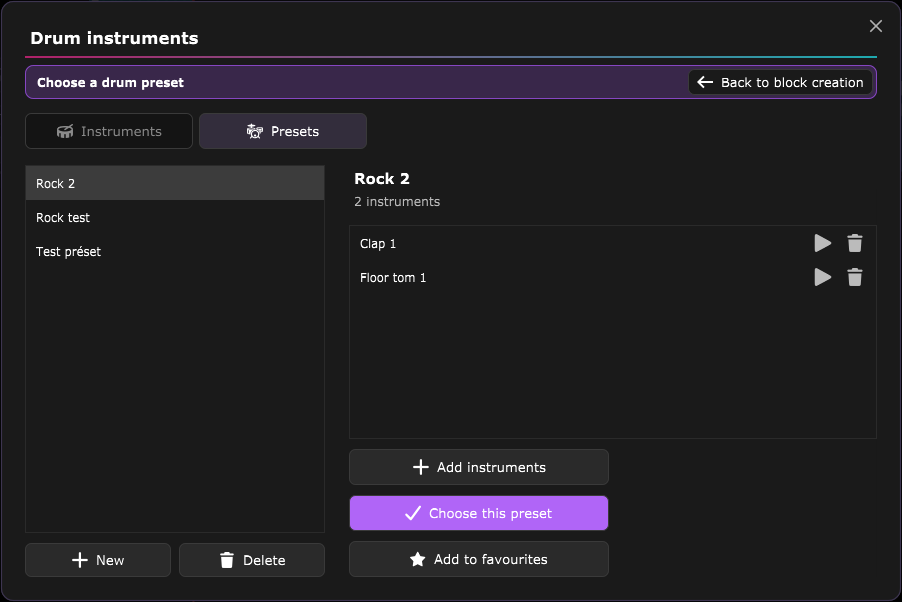
These same windows also open when a block needs a sound: a coloured banner tells you what to pick, with a back button to the screen you came from, and the detail panel gains a purple button.
- In Create a midi block: "Choose a drum preset" (optional, without a preset the block starts empty) or "Choose a synth sound" (required for a synthesiser block).
- In a drum block's editor: Add instruments opens the library, and each click on Add this instrument adds one to the block without closing the window.
- In a synthesiser block's editor: the instrument button lets you change the sound.
ASIO is a trademark of Steinberg Media Technologies GmbH, registered in Europe and other countries.