
Disk space
The menu bar indicators
On the right of the menu bar, between the AI chip and your username, three small counters show the state of the computer:
- Processor: the application's usage, then that of the whole machine.
- Memory: the memory used by the application, then the share of memory in use on the whole machine.
- Storage: the size of the open session's folder, then the space still free on the disk that holds it. This counter only exists while a session is open.
Each counter turns orange, then red, on its second figure: from 80% then 90% for the machine's processor and memory, and when less than 20 GB then 10 GB remain free for storage. A click on the storage counter opens the "Free up disk space" window.
What the application keeps
To be able to undo an action, even after closing the application, the application does not delete a file straight away when it stops being needed: a deleted track or block, a take replaced by an edit, an export replaced by a new one. These files stay on disk, out of the way, until you delete them yourself.
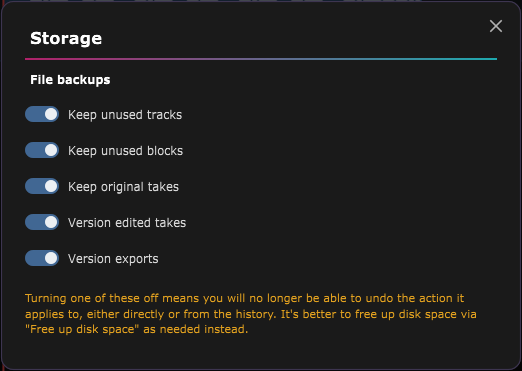
Settings › Storage opens the "File backups" window, with five switches, all on by default:
- Keep unused tracks
- Keep unused blocks
- Keep original takes
- Version edited takes
- Version exports
Every change applies immediately. Be careful: turning a switch off makes the application delete these files as soon as they are no longer used, which prevents undoing the matching action (directly or from the history), and "Restore the original" for a take. It is better to leave these settings on and free up space from time to time, as described below.
Free up disk space
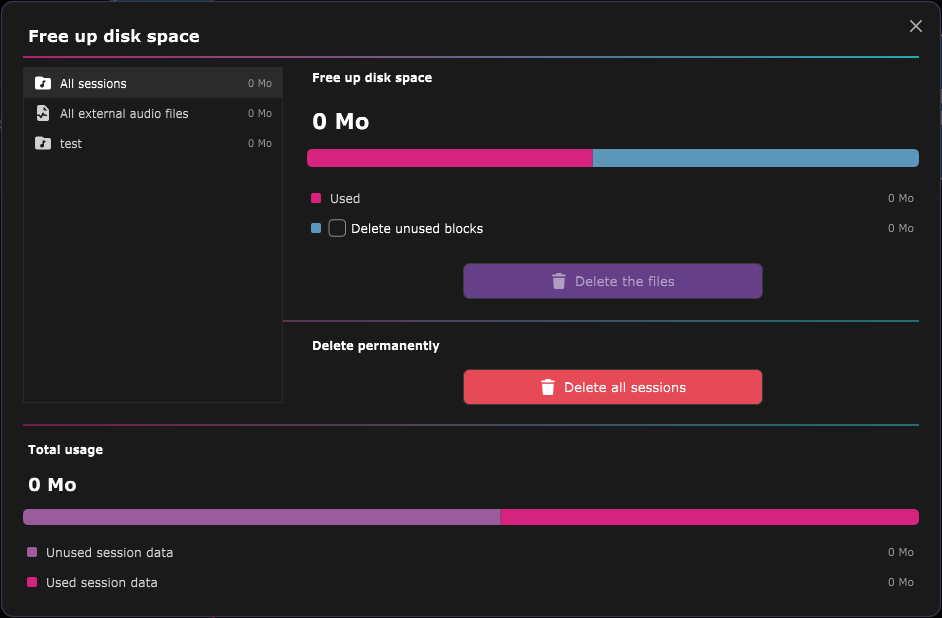
Settings › Free up disk space (or a click on the storage counter) shows what takes up the space and lets you delete it.
On the left, the list: All sessions, All external audio files, then each session, from the largest to the smallest, with its size. Select a row, and the right panel details its usage:
- The total size, a coloured bar and one line per non-empty category: used data (which cannot be deleted), unused original takes and edited versions, unused tracks and blocks, exports.
- Tick the categories to erase then click Delete the files: a confirmation states how much space will be freed. What the session still uses is never touched.
- The red Delete permanently button ("Delete the session", "Delete all sessions"…) erases the whole selected row, including what is in use - keep it for sessions you no longer need. A confirmation reminds you.
Under the two columns, the Total usage section sums up all the disk space used by the application: used and unused session data, exports, external audio files.
Deleting kept files may make some actions impossible to undo: the History window will no longer show the "Undo this action" button for those.
ASIO is a trademark of Steinberg Media Technologies GmbH, registered in Europe and other countries.