
Settings
Input and output devices
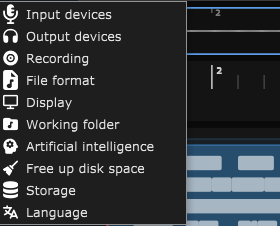
The Settings › Input devices and Settings › Output devices menus list the audio inputs and outputs detected on the machine, with a switch per device and the choice of the default device. For an input, this is also where you set the latency compensation and start its calibration. The detail is in the Audio devices chapter.
Recording
The Settings › Recording menu sets how recording behaves: the "Recording starts playback" switch and the "Before recording" settings (pre-roll, countdown). The detail is in the Audio devices and Recording chapters.
File format
The Settings › File format menu chooses the format (WAV or MP3) the application now records, imports and edits your audio files in. This setting is a single, application-wide choice - there is no longer a per-session format.
Changing it never touches what already exists: only new recordings, new imports, new external file openings and a block's first edit follow this format from the moment you change it. Nothing is bulk-converted.
Switching from WAV to MP3 shows a confirmation window: WAV has no performance downside but uses much more disk space (roughly 7 to 10 times more); MP3 saves that space but slows down waveform display, playback, export and every edit (volume, EQ, effect, trimming) of an affected block, with a slight quality loss on each re-encode. Choosing WAV needs no confirmation, since it has none of these downsides.

Display
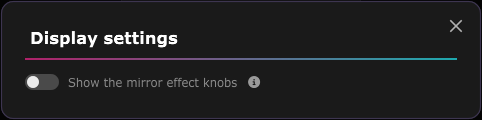
The Settings › Display menu opens the Display settings window. It holds a single setting: "Show the mirror effect knobs".
The mirror knobs are the small effect knobs mirrored straight onto the transport bar (for the session and for audio blocks) and in each track's panel, next to the regular effects modal. They let you play with effect settings by ear without opening a window. The switch is off by default: only the "Effects" button stays visible (it turns blue when an effect is applied). Turn it on to bring the mirror knobs back everywhere.
This setting is tied to your account: it is restored on another computer where you sign in.
Working folder
The Settings › Working folder menu lets you change the folder that holds your sessions as well as the working copies of audio files opened or imported into the application, with an option to copy the existing sessions to the new folder. See the Create and manage a session chapter.
Artificial intelligence
The Settings › Artificial intelligence menu holds your Google API key, its validity and the list of models used today. See the Generation with artificial intelligence chapter.
Storage and disk space
Two entries of the Settings menu manage the space used on disk: Storage, which decides which backup files the application keeps, and Free up disk space, which lets you delete them. See the Disk space chapter.
Language
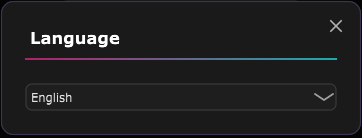
The Settings › Language menu changes the application language (French or English). The change is applied right away, with no restart. The language is also tied to your account: it is restored on another computer where you sign in.
ASIO is a trademark of Steinberg Media Technologies GmbH, registered in Europe and other countries.