
Add tracks
A track has no type
Open the Add a track window with the button of the same name in the multitrack view. A track has no type: it is each block on it that is audio or midi. One track can therefore hold recordings, drum midi blocks and synth midi blocks all at once.
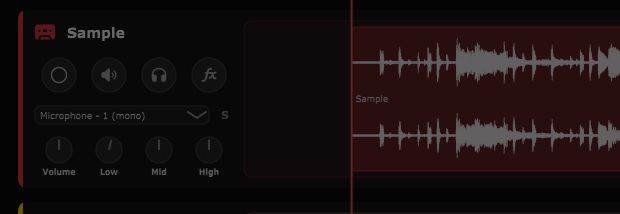
Every track has a "record" button and an input selector: any track can be recorded (see the Recording chapter). There is no longer a type badge under the track name. Just to the right of the input selector, an "M" or "S" letter shows whether the track is mono or stereo (replacing the old "mono" / "stereo" badge).
Icon, colour and name
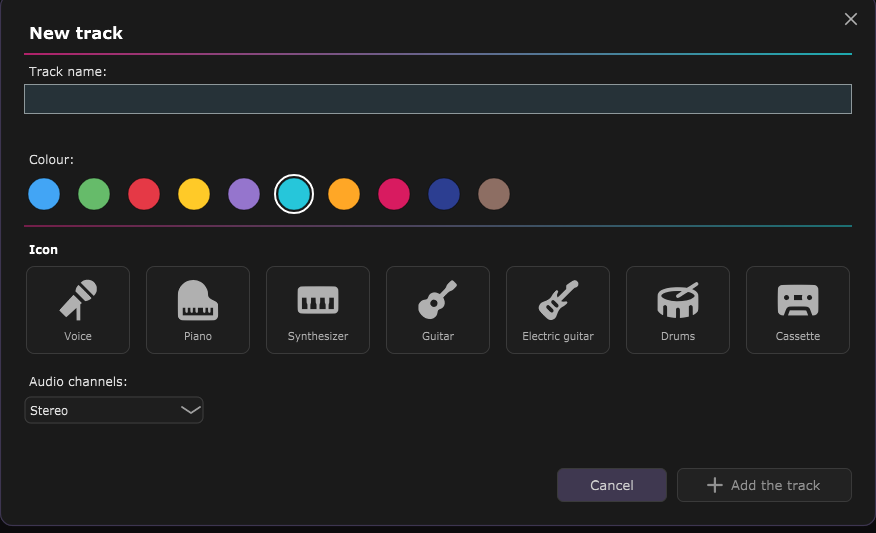
In the Add a track window:
- Choose a colour. It is a visual marker in the multitrack view and for the track's blocks.
- Choose an icon by clicking a tile. It is purely decorative (shown next to the name) and changes nothing about how the track behaves. Seven choices: Voice, Piano, Synth, Drums, Guitar, Electric guitar, Cassette.
- Choose mono or stereo: the track's channel count, applied to recordings and to midi blocks alike.
- Enter a name. Clicking a tile pre-fills the field with a default name as long as you have not typed anything.
The name must be unique among all tracks. If the name already exists, the application appends a number. While a duplicate is visible as you type, a red note "A track already has this name" appears and the "Add the track" button is disabled.
Arm, mute, solo, effects, minimize
The track panel lines up four buttons: record, mute, solo and effects.
- Arm: the "record" button marks the track to be recorded on the next start. Any track can be armed. Once clicked it stays grey with a loading spinner while its input opens, then turns red. See the Recording chapter.
- Mute: a muted track is left out of the mix on playback and on export. The state is saved in the session.
- Solo (green highlight): as soon as one track is soloed, only the soloed tracks are audible and every other track is treated as muted. The state is saved in the session, like mute. A track that is both armed and soloed is not played while it is being recorded.
- Effects: opens the track's effects. The button turns blue as soon as at least one effect is applied to the track (see the Playback and mixing chapter).
- Configure and delete: there is no dedicated button. A right-click on the track panel opens its menu: "Configure the track" (name, colour, icon, channels) and "Delete the track". Deletion is immediate, with no confirmation, as everywhere in the application.
- Volume: the volume knob at the bottom of the panel is set by hand; a right-click on it offers "Configure volume", which opens a window to set the volume and its amplitude precisely (see the Playback and mixing chapter).
- Minimize or expand the track: there is no more "show / hide" button. The right-click menu offers "Minimize the track" (when it is expanded) or "Maximize the track" (when it is minimized). A left double-click on a button-free area of the track does the same toggle.
Import an audio file onto a track
Right clicking empty space on any track offers "Import an audio file". The window that opens has the same two sections as File › Open an audio file (see the Waveform editing chapter): "Import a new file" to pick a file from your disk, and "Recent audio files" to reuse one already opened.
The file is converted if needed to the current format (see Settings › File format), then added as a new audio block on the track, editable and exportable exactly like a recorded block.
ASIO is a trademark of Steinberg Media Technologies GmbH, registered in Europe and other countries.